Free Table Tennis Scoreboard App That Calls Out the Score
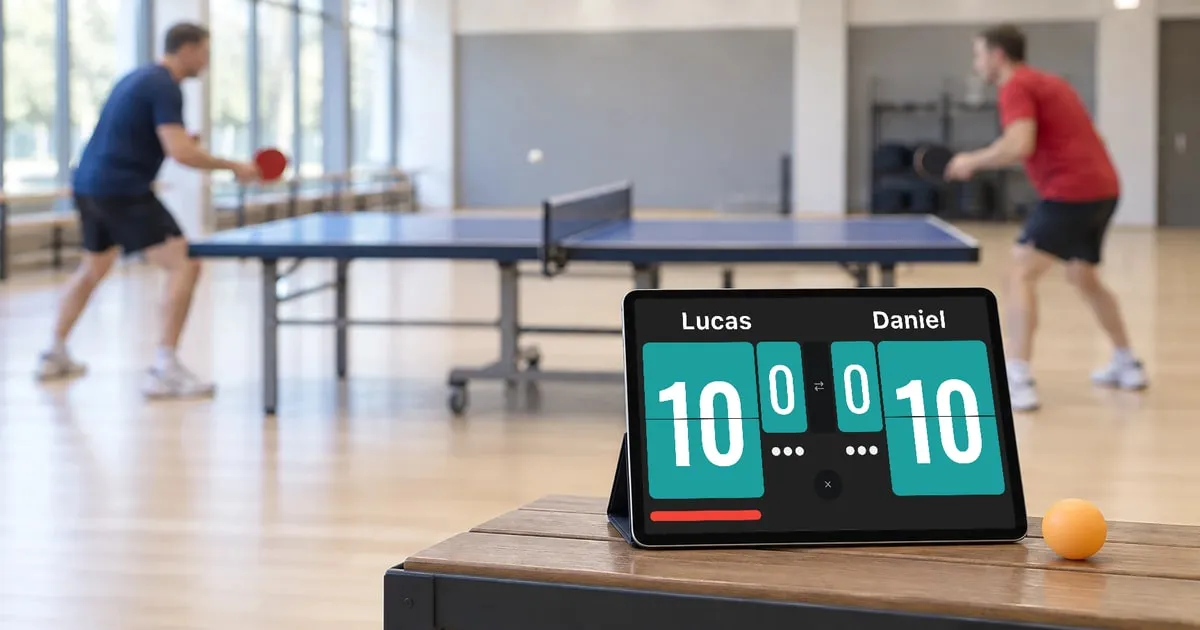
Ever stopped mid-game—at practice, or while playing ping pong with family and friends—to ask, “Wait, what’s the score? Whose serve is it?” Table Tennis Scoreboard is a free app that turns your phone or tablet into a table tennis (ping pong) scoreboard and calls the score out loud after every point, like an umpire. Plenty of apps let you tap to keep score, but the voice calls are what I focused on most. I’m the developer, and I played table tennis on my school team in Japan. Below, I’ll walk you through setup and the four details I cared about most.
How to use it as a table tennis scoreboard
- On the menu, tap “Play a New Match.”
- Choose the match format: “3 Games,” “5 Games,” or “7 Games” (“3 Games” means best of three).
- Enter the two players’ names (you can leave them blank).
- Tap “Serve” under the player who serves first.
- Tap “Start Match.”
- When a player wins a point, tap the lower half of their panel.
- When a game ends, tap the arrow button (⇄) in the center to move on to the next game.
From there, you just add points. The app works out the change of serve (every two points, and every point from 10–10) and when each game ends. If you tap the wrong side, double-tap the upper half of the panel to undo it. The app remembers the last players’ names and match format, so a rematch takes seconds.
The calls don’t play in Silent mode, so switch it off before you start.
1. No umpire? The app calls the score for you
When there’s no umpire, the server usually calls the score. Still, people forget, and the two players’ counts can quietly drift apart.
So the app calls the score after every point. The calls are based on the umpiring materials from the ITTF (International Table Tennis Federation). Both players hear the same score, so a missed or wrong tap gets caught right away.
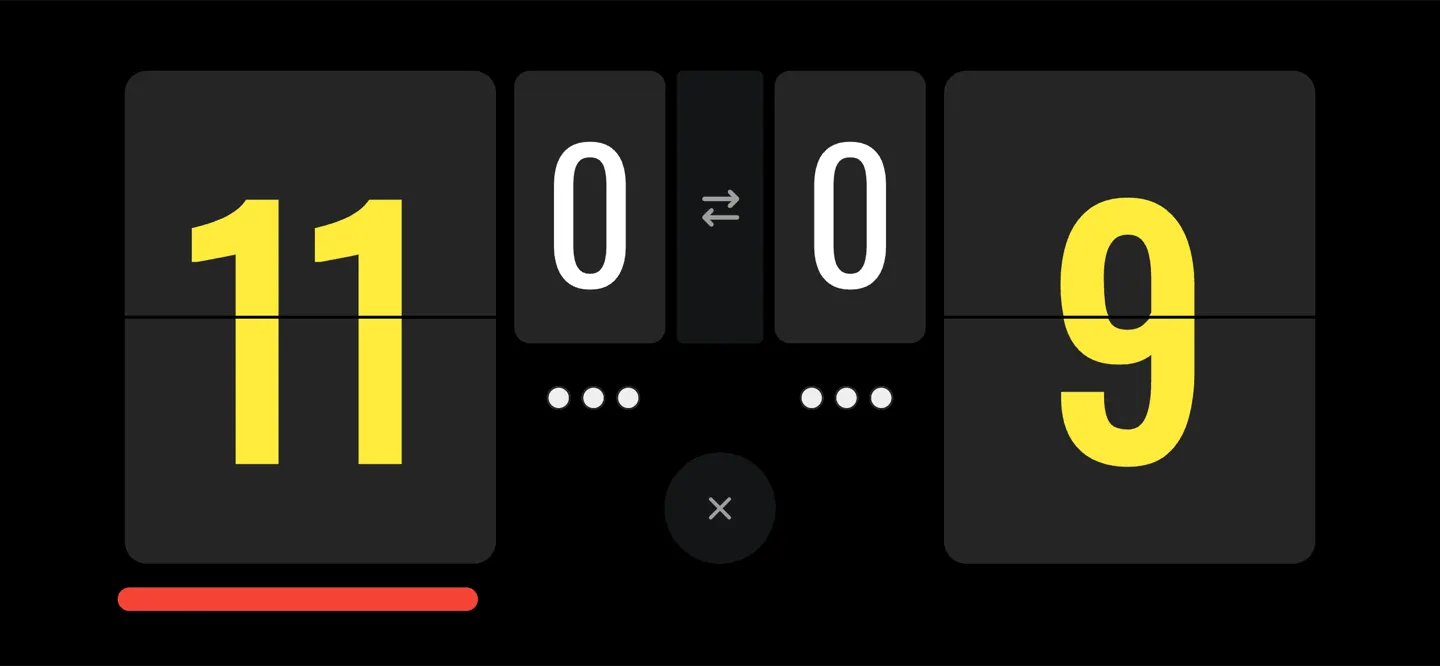
This 13-second video shows a game ending 11–9 and the next game starting after the players change ends. With the sound on, you’ll hear “Game!” followed by the score, and then “Change Ends, love all.”
As the ITTF rules require, the server’s score is called first. Zero is “love,” and a tie adds “all,” as in “five all.” A game ends with “Game!” and the match with “Match!”, followed by the score with the winner’s points first.
English is the default, and you can switch the calls to one of 10 other languages: Spanish, French, German, Portuguese, Japanese, Korean, Chinese (Simplified or Traditional), Indonesian, and Malay.
2. A phone at home, a tablet in the gym: a scoreboard you can read from across the room
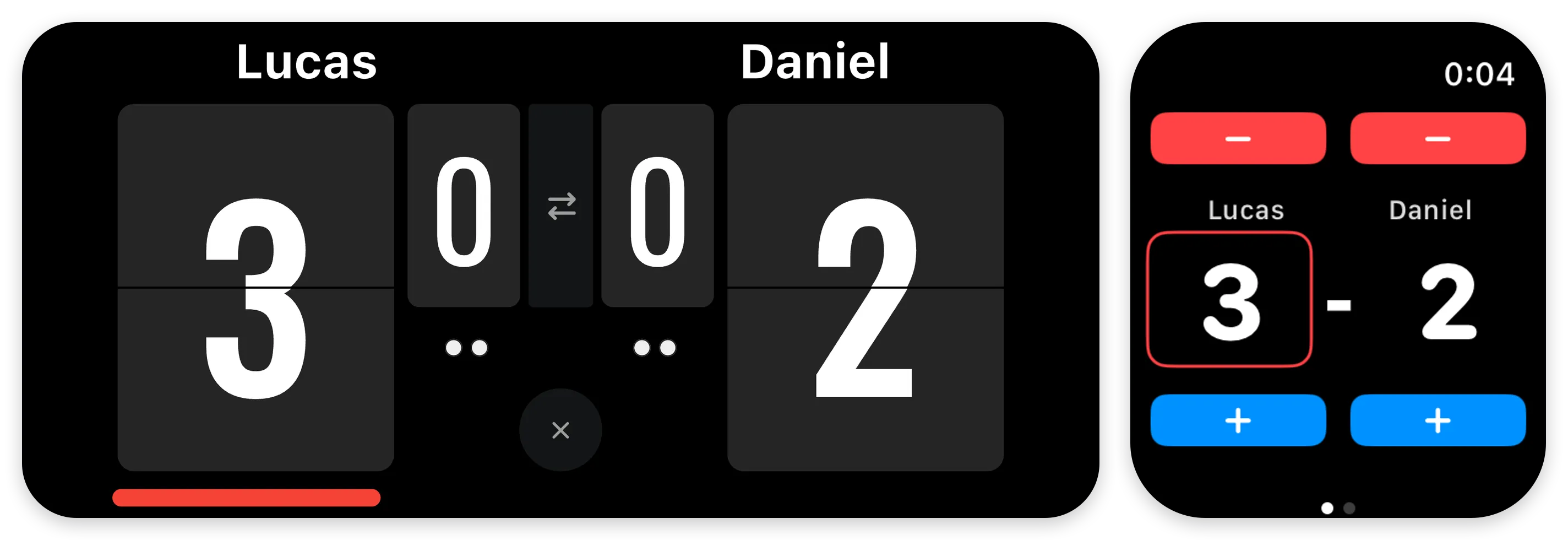
For a table at home, a phone propped up beside it is all you need. In a gym or at a local tournament, where people watch from farther away, a tablet’s big screen helps. I designed the layout to work on both.
The numbers flip over like the cards on a real flip scoreboard. A red bar under the server’s score shows whose serve it is at a glance. The small numbers in the center count games won, and a dot below fills in for each one.
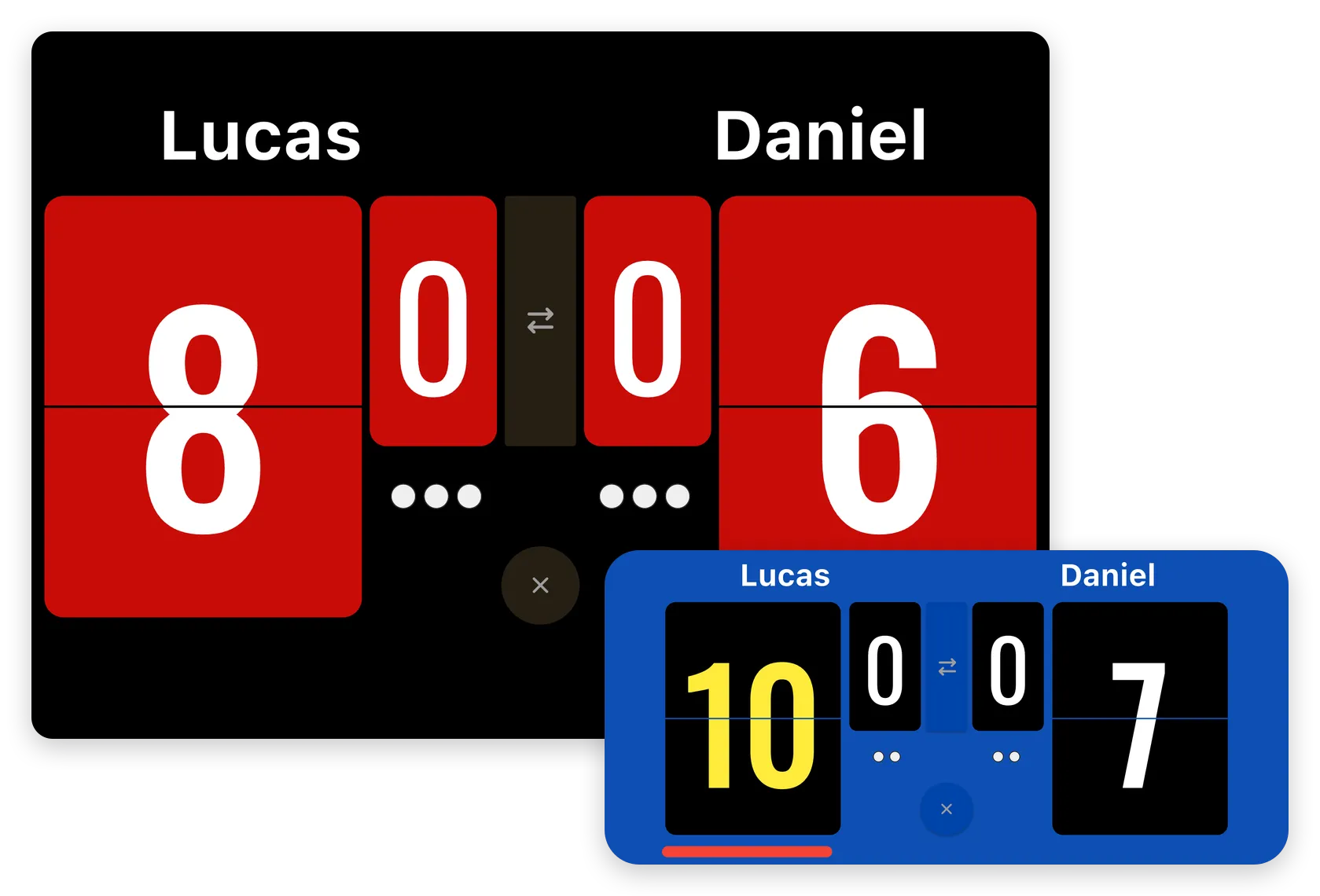
You can pick from six colors under “Scoreboard Color” in Settings: Blue, Black, Green, White, Red, and Pink. The screen stays on during a match, so it won’t go dark in the middle of a rally.
3. Keep score from your wrist on Apple Watch, without walking to the table
With no umpire, the players keep score themselves. Walking over to the device after every point gets old fast.
That’s why I added Apple Watch support. Start a match on your iPhone, open the app on your watch, and the names and score appear on your wrist. Each player has their own “+” to add a point and “−” to undo one. You can change ends from the watch, too.
I redesigned the watch screen after an App Store review said it was hard to tell which score belonged to whom. Now each player’s name sits right above their score. A widget on your watch face opens the app in one tap.
4. See how every point went, then save the match to Table Tennis Journal
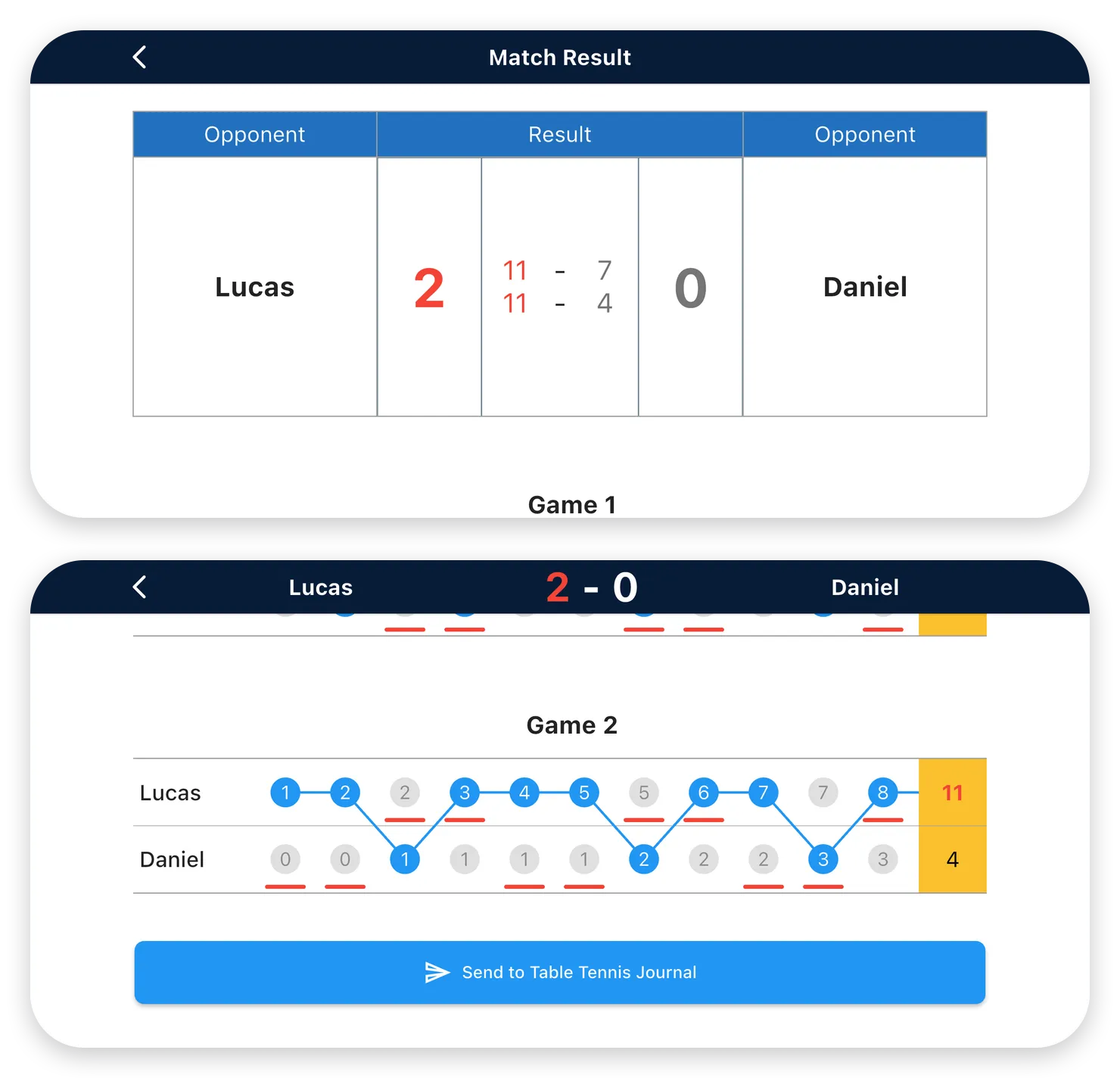
When you play a match through to the end, the result is saved automatically. Open a match from “Past Match Results” to see the score of each game and a point-by-point chart.
The chart lays out every point in order, with a line tracing who won each one. An underline marks who served. Scroll the chart sideways to follow the whole match, one point at a time. Did you win points on your own serve? Where did you give up a run of points? It gives you something concrete to go over after the match.
On the match result screen, tap “Send to Table Tennis Journal” to pass the result to Table Tennis Journal, our sister app. Pick which player is you, and each match is added to your log.
Other features
- A coin toss to decide serve and ends (Premium Mode)
- “Automatic Change Ends,” which changes ends for you when nothing is tapped for 4 seconds after a game ends
- “Play Again,” which starts the next match with the same settings
- No account needed
Good to know before you start
- The calls use the text-to-speech voices installed on your device, so some words may be mispronounced on some devices. Use your device’s volume buttons to adjust the volume. You can also turn the calls off in Settings.
- Matches are best of 3, 5, or 7 games, played to 11 points. There’s no single-game match, no 21-point game, and no handicap setting.
- The first server switches automatically in each new game. In the deciding game, players switch sides when one of them reaches 5 points. The app doesn’t remind you; tap the arrow button in the center to swap the sides on screen.
- There are no doubles-specific features. If you enter each pair’s names, the app shows the score and which pair is serving. It doesn’t show which of the four players serves.
- There are limits on undoing points:
- Right after a game ends, you can only undo on the winner’s side (for example, to fix the final point).
- After you change ends, you can’t go back to the previous game’s points.
- After the match is decided, you can’t undo points. To remove a match recorded by mistake, swipe left on it in “Past Match Results” to delete it.
- Apple Watch controls the iPhone scoreboard only. It can’t control the scoreboard on iPad.
- Match records are stored on the device you use and aren’t shared between iPhone and iPad.
Price and requirements
- Free to download. The scoreboard, voice calls, Apple Watch controls, and match records are all free.
- There are ads. A banner appears at the bottom of the menu screen. A full-screen ad may appear when you close the match result screen, or when you switch to another app and come back, even mid-match. There’s no banner ad on the scoreboard screen where you keep score.
- A one-time purchase of “Premium Mode” removes ads and lets you use the coin toss before a match. Before you buy, you can try the coin toss by tapping “Try” on the Premium Mode screen and watching an ad.
- Works on iPhone and iPad (iOS 17.2 or later). The Apple Watch app requires watchOS 10.0 or later and works with a paired iPhone.
- Table Tennis Journal requires iOS 26 or later. On earlier versions of iOS, you can’t send results to Table Tennis Journal.
I built this app so the phone or tablet you already have can keep score for you. No more stopping to ask, “What’s the score again?” The calls and the records are free. Next time you play, let the app call the score.