Free Table Tennis Journal App: Log Practice and Matches
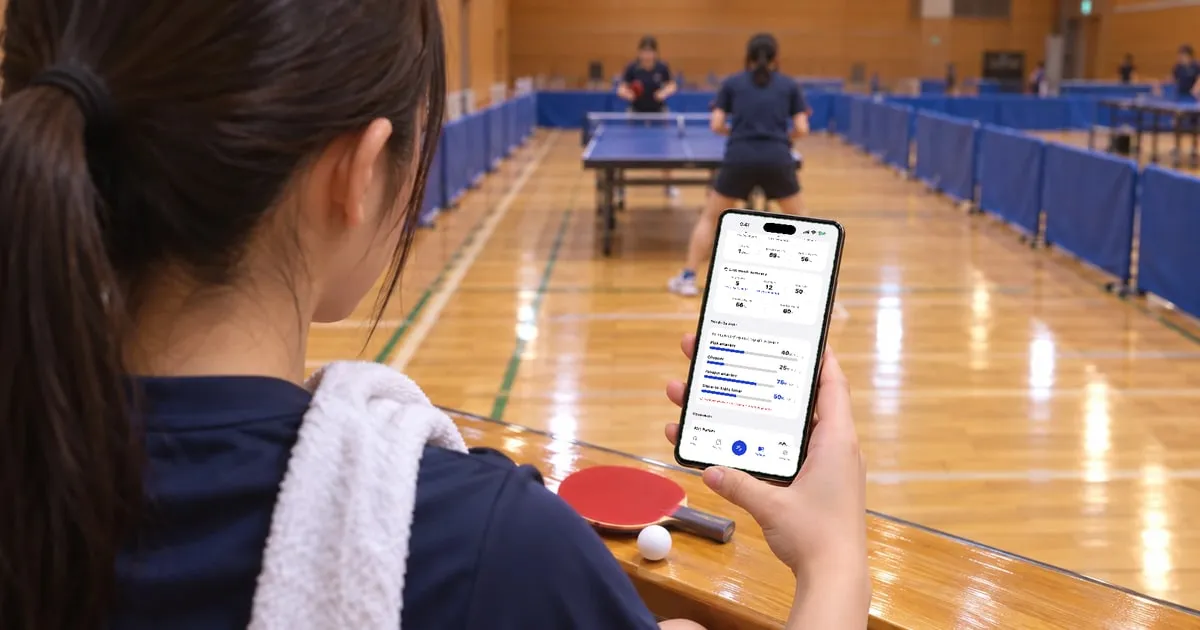
Next week you play the chopper who beat you last time. But you can’t remember what didn’t work in that match, or how much you’ve worked on looping against chop since. Sound familiar? Table Tennis Journal (“Table Tennis Journal & Log” on the App Store) is a free app that keeps your table tennis practice and matches together in one journal on your iPhone. I’m the developer, and I played table tennis on my school team in Japan. Below, I’ll show you the three things I cared about most. Plenty of apps show your records on a calendar or in charts. What I focused on was making practice as quick to log as a match, in just a few taps. I also made it easy to look back: practice by how often you did each drill each week, and matches by your win rate against each playing style.
How to log table tennis practice and matches
Log a practice
- Tap the button in the center at the bottom of the screen.
- Tap “Practice.”
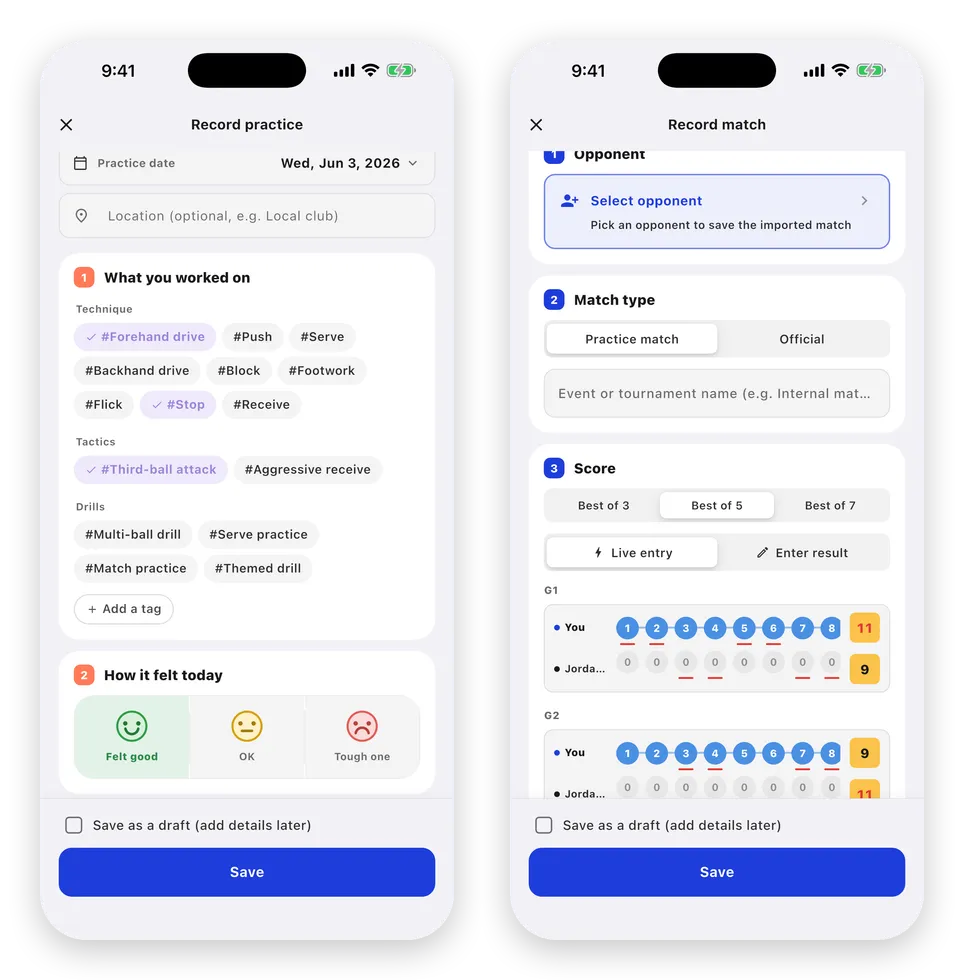
- Under “What you worked on,” tap the tags for what you did that day.
- Under “How it felt today,” choose “Felt good,” “OK,” or “Tough one.”
- Tap “Save.”
Log a match
- Tap the button in the center at the bottom of the screen.
- Tap “Match.”
- Tap “Select opponent” (“Add opponent” the first time).
- Tap your opponent in the list. For someone new, tap “+” in the top right and enter their name and playing style.
- Choose the match format: “Best of 3,” “Best of 5,” or “Best of 7.”
- Under “Enter result,” tap “+” to enter the number of games you and your opponent won.
- Tap the button that shows the match score, such as “Save 3-2.”
You can leave any field that isn’t in these steps blank. To keep the score of each game too, open “Also record game scores (optional)” and enter them.
1. No writing needed: log practices and matches in one journal in a few taps
I figured my paper training notebook never lasted because there was too much to write. So I made it possible to log both practice and matches without writing a word.
Practice and matches appear together on the same timeline and calendar. On the calendar, practice is marked with a square and matches with a circle, so you can see on one screen what you were working on in the run-up to a match.
For practice, you pick what you worked on as tags. The tags are grouped into “Technique,” “Tactics,” and “Drills,” and come with built-in ones like “#Forehand drive,” “#Push,” and “#Multi-ball drill.” The tags you use most move to the top, and you can create your own. Then choose how it felt today and save. If you skip the tags and the feeling, you can save in as few as three taps. For a match, pick your opponent, tap “+” for the games each of you won, and save.
On days you do want to write, practice has fields like “Reflection” and “Advice you received,” and matches have fields like “What didn’t go well” and “Next to try.”
2. Are you really practicing it more? Check your weekly counts
Logging practice doesn’t tell you much if you never look back. You may feel you’ve been doing more of a drill when you haven’t. Your records come together in two places: Home and “Reflect.”
Under “Recent focus” on Home, your three most-practiced tags from the past month are listed with how many sessions felt “Good,” “Neutral,” or “Tough.” Under “Trend” in “Reflect,” you can compare how many times you practiced your top three tags each week over four weeks. When a tag has clearly gone up or down lately, a one-line note appears, such as “You’ve been working on #Forehand drive more recently.”
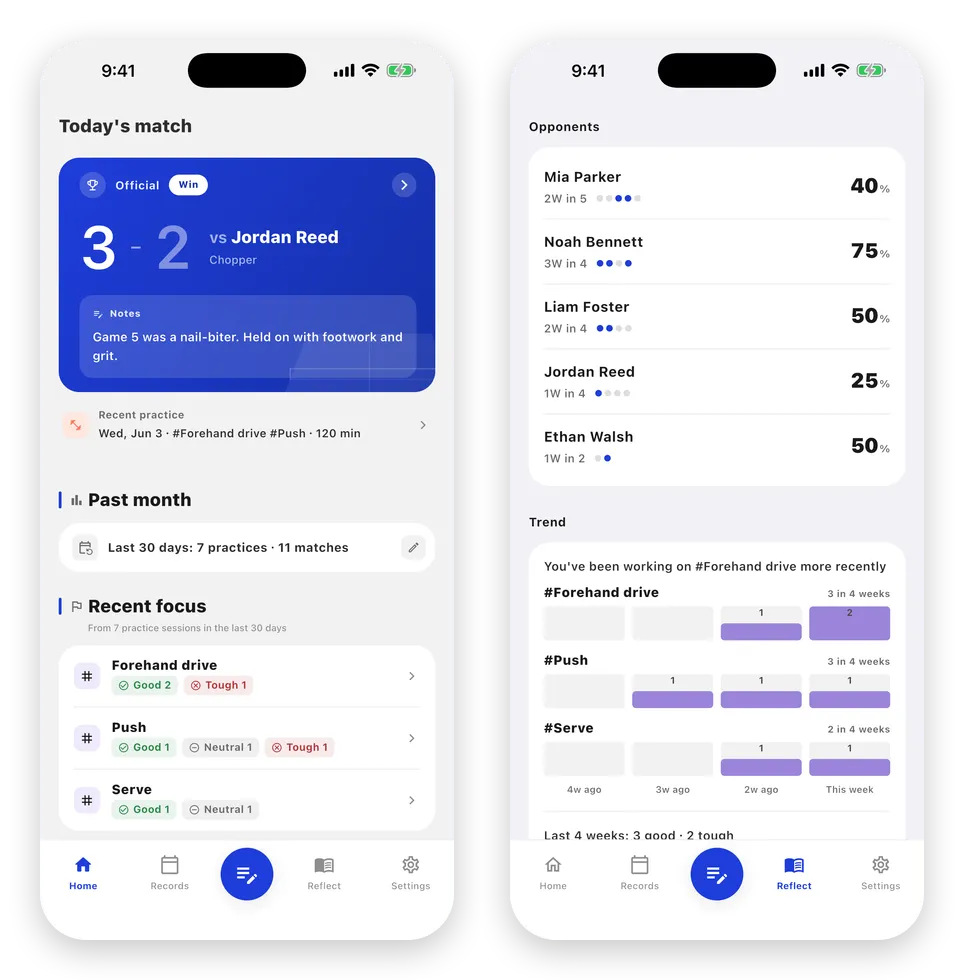
For how practice felt, one line shows how many good and tough sessions you had in the last four weeks. Say you made your own “#Looping vs chop” tag to prepare for choppers. Your records can show you that you actually did less of it these past two weeks.
3. Find the playing styles you lose to, and how you lose points
At clubs and in league play, you hear it all the time: “I can’t beat choppers.” “I struggle against pips.” If you choose a playing style when you add an opponent, your match records can tell you whether that’s really true.
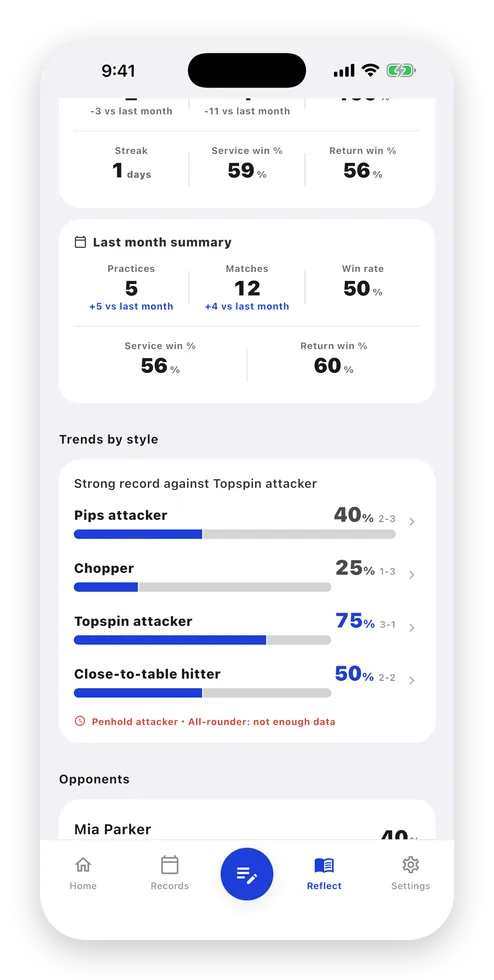
The styles are “Topspin attacker,” “Chopper,” “Close-to-table hitter,” “Penhold attacker,” “Pips attacker,” and “All-rounder.” Under “Trends by style” in “Reflect,” you’ll see your win rate and win-loss record against each style. Tap a style to see your average game margin against those players, a breakdown of how you won and lost points, and your recent matches. Before you face a chopper again at a tournament, you can go back over how the points went last time. Once you know which style keeps beating you, tag the practice you do for it. Then the weekly counts from section 2 will show whether you’re putting in the work.
If you hand your iPhone to a teammate or family member who’s watching and ask them to use “Live entry,” you can record the match point by point. They just tap “You” or “Opp.” for whoever wins each point, and the app keeps track of whose serve it is. After each point, you can choose how it was won under “How was that point won?” (“From serve,” “Rally shot,” “Opponent error,” and more), or how it was lost under “How was that point lost?” (“Lost on receive,” “My error,” and more). You can also skip this. For matches recorded point by point, the match details show “Service win rate” and “Return win rate”: the share of points you won in rallies where you served, and in rallies where you received. That tells you whether you were losing points on your serve or on your receive.
If you used Table Tennis Scoreboard (“Table Tennis Scoreboard: Voice” on the App Store) to keep score, tap “Send to Table Tennis Journal” on its match result screen to bring the match in, point-by-point record included.
Other features
- Share a match result as an image card with the score and how the points went
- Search your records by notes, opponent, or location
- Attach photos and videos to matches and practices
- Manage tags (rename or delete your own tags, hide tags you don’t use)
- Back up and restore your records (JSON file)
Good to know before you start
- You can log singles matches. In a team match, you can log each singles match one at a time. Doubles and the overall team result can’t be recorded.
- Only practice entries have tags and a “How it felt today” choice. For thoughts after a match, use fields like “What went well,” “What didn’t go well,” and “Next to try.”
- A match counts toward win rates by style only if the opponent’s style was already set when you saved the match. If you add a style later, open each past match’s edit screen and tap “Refresh to current” to include it. The win-rate bar for a style appears once you’ve played three or more matches against opponents of that style.
- Service and return win rates are calculated only from matches recorded point by point (with Live entry or imported from Table Tennis Scoreboard). The breakdown of how points were won and lost comes only from what you choose during Live entry; Table Tennis Scoreboard doesn’t send it.
- Live entry uses games to 11 (from 10-all, play continues until someone leads by two), and you enter points until the match is decided. If you close it partway and choose “Discard and close,” the points you entered aren’t kept.
- The link with Table Tennis Scoreboard goes one way, from the scoreboard to the journal. After importing, choose which player is you and select your opponent in Table Tennis Journal, then save.
- Your records are stored only on your iPhone. When you switch phones, export a file with “Back up as JSON” in Settings, then load it on the new iPhone with “Restore from JSON.” Photos and videos aren’t included in this backup.
Price and requirements
- Free to download. Logging, reflecting, Live entry, and the link with Table Tennis Scoreboard are all free. No account needed.
- There are ads. A banner appears at the bottom of the screen, and a full-screen ad may appear after you save a match. None appears after you save a practice. There’s no banner ad on the Live entry screen or while you’re entering a record.
- A one-time Premium purchase removes ads and lets you create multiple profiles. For example, a parent can keep separate records for two kids on one phone.
- For iPhone (iOS 26 or later).
Final thoughts
If you notice anything while using the app, let me know through “Send feedback or report a bug” in Settings. I built this app so that before you face a chopper again, you can look back at the last match and the practice since, all in the same journal. Logging and reflecting are free. Pick today’s practice tags and save, and your first entry will appear under “Recent focus” on Home.