Free Moon Direction App for iPhone: See Which Way to Look
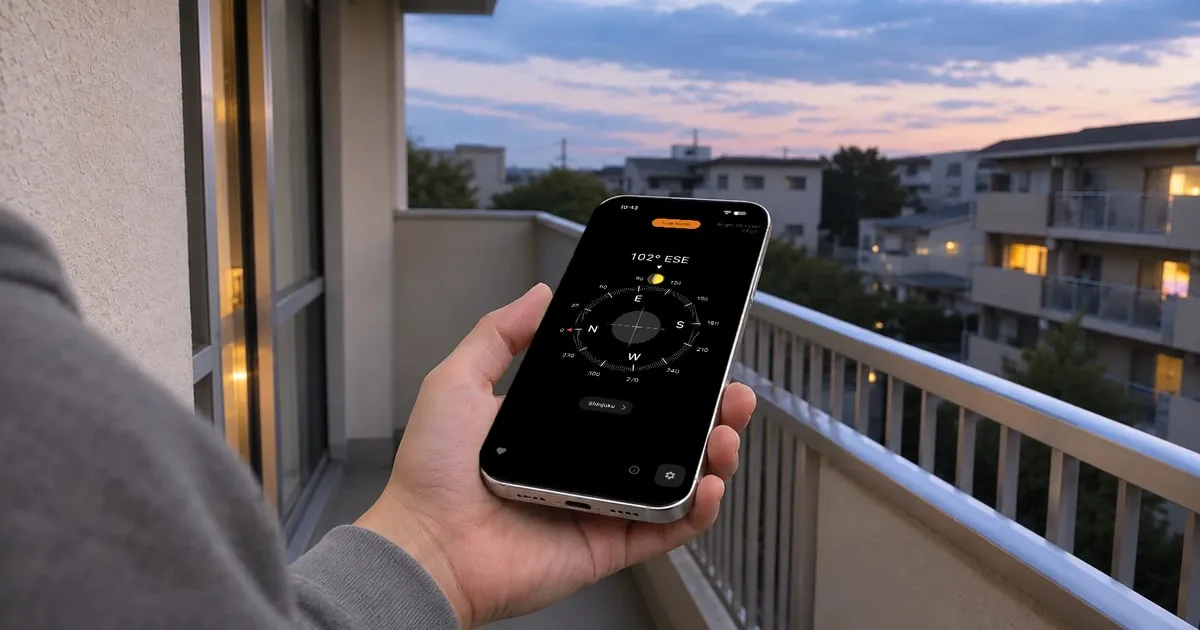
You hear there’s a full moon tonight, so you step outside. No moon. Is it hidden behind a building, or are you just facing the wrong way? Marker Compass (“Marker Compass: True North” on the App Store) is a free iPhone app that works as a moon direction finder: it shows which way the moon is right now and gives you a rough idea of whether it’s up. It can also show the direction and distance to any place you choose.
I’m the developer, and in this post I’ll show you how to find the moon’s direction and how to add your own places. Plenty of apps can point you to the moon, and some add AR or altitude. This one shows direction and phase, but not altitude. I focused on answering one question from a single compass screen: which way should I face?
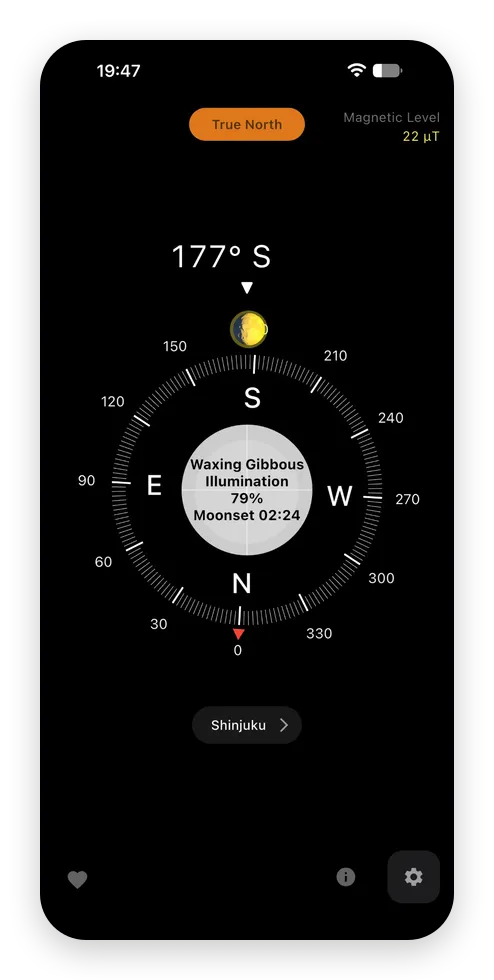
When the moon icon sits directly under the ▼, you’re facing the moon’s compass direction. There’s a caveat about the time shown in the center, covered in “Good to know before you start.”
How to find the moon’s direction with the app
- Tap “Current location” below the compass.
- Allow access to your location. The button then shows your city instead of “Current location.”
- Tap the gear button to open Settings.
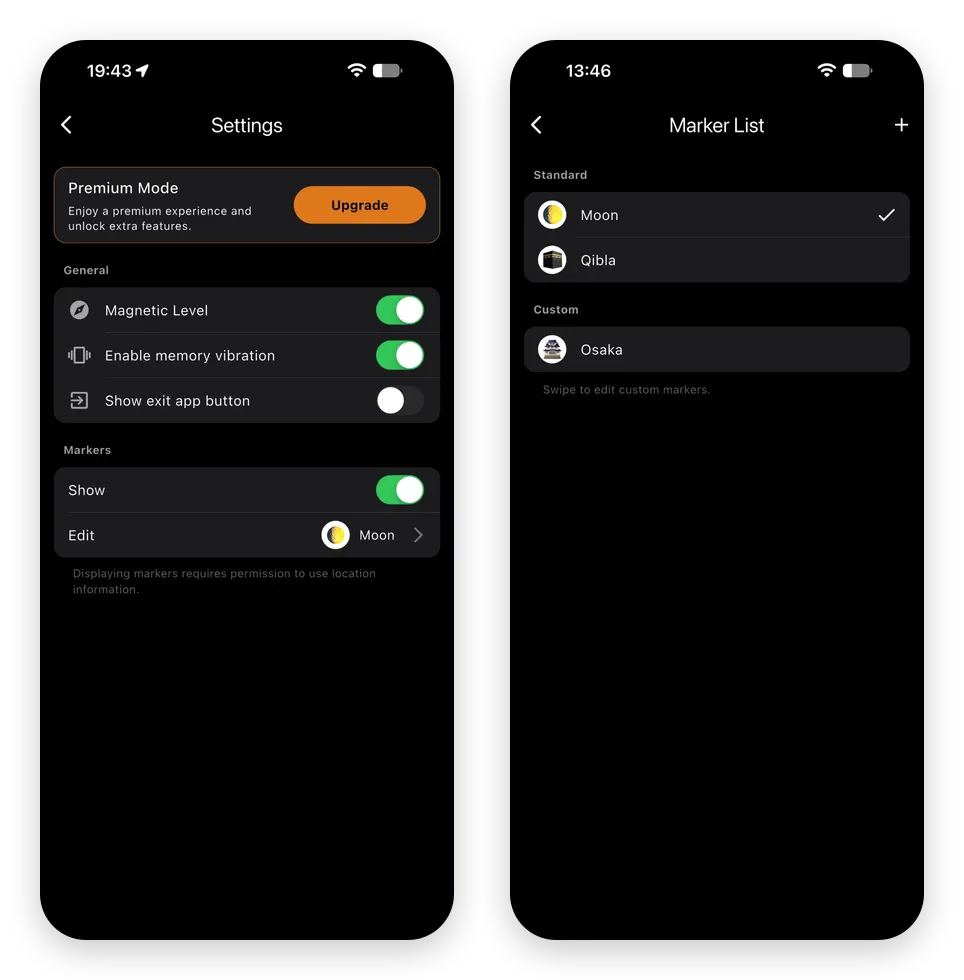
- Markers are hidden at first, so turn on “Show” under “Markers.” “Moon” is already selected.
- Go back to the compass and hold your iPhone flat.
- Turn your body until the moon icon is directly under the ▼ at the top of the dial. You’re now facing the moon’s compass direction. Look up from there.
- Tap the round “i” button. The center of the dial shows the phase name, such as Waxing Gibbous, and the illumination.
Ads have been removed from the screenshots in this post. See “Price and requirements” for where they appear.
1. Before you go outside: which way to look, and whether the moon is likely up
Before you head out, the dial tells you which way to look. The icon on its outer edge points toward the moon, and its color gives a rough idea of where the moon is right now: yellowish in the night sky, light blue in the daytime sky, and dark below the horizon. If the moon is in the east, there’s no point looking out of a west-facing window.
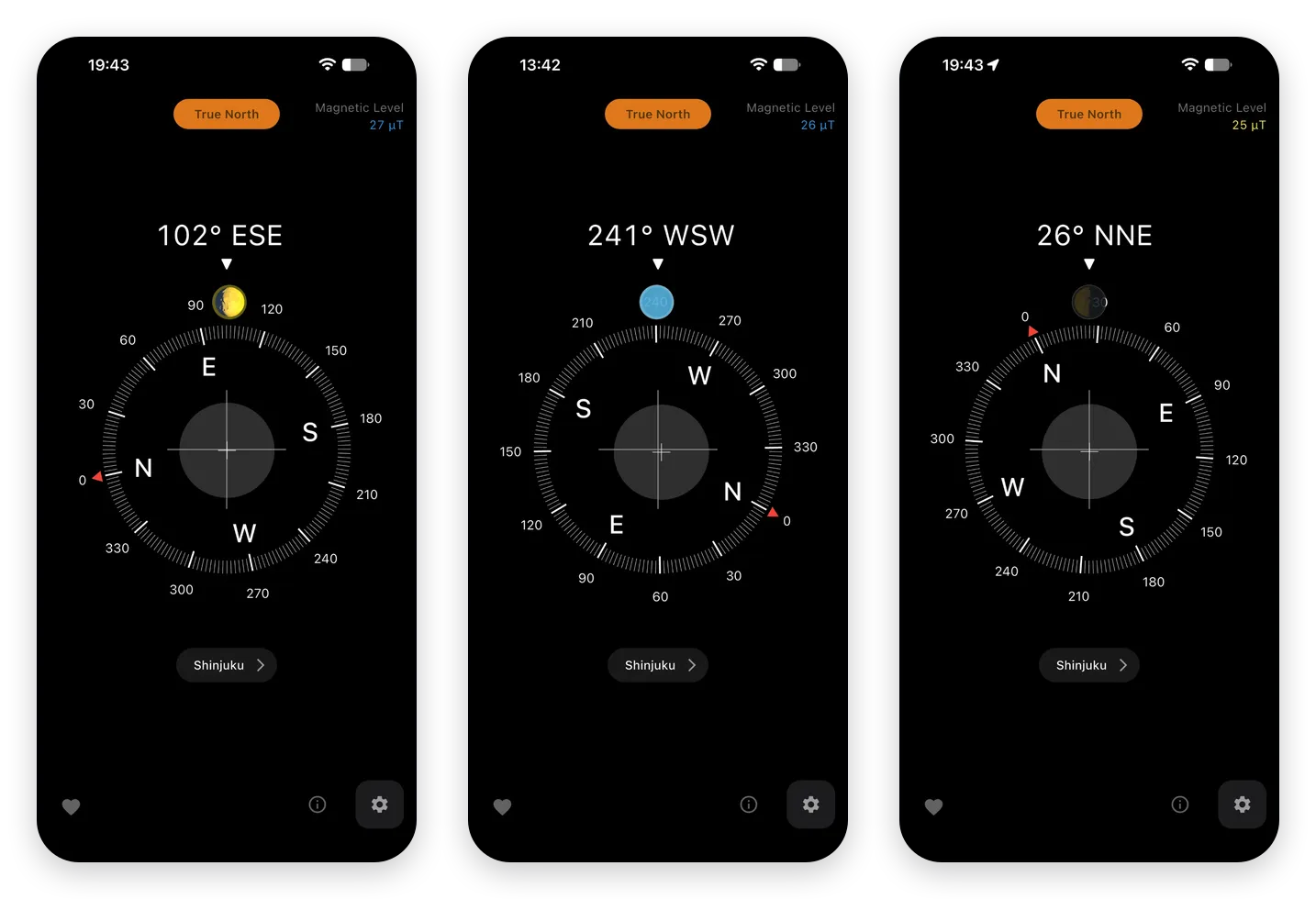
The icon shows the phase with one of eight pictures. The center of the dial shows a rough phase name, such as Waxing Gibbous or Full Moon, along with the illumination (how much of the moon appears lit). If you’re out to photograph the moon, the icon shows which part of the sky to check. In the daytime sky, the blue tint can make the moon picture hard to see, especially near a new moon, as in the middle screen above.
2. Set your own marker: which way home is, and how far
The icon that was showing the moon can show a place of your own instead. Set your parents’ house or your hometown as a marker, and the dial shows which way it is, with the distance from where you are in the center. In the screenshot below, Osaka is about 399 km (248 mi) in a straight line from Shinjuku in Tokyo. On a trip, you can check which way your hotel is and how far away it is in a straight line without opening a map. A maps app is still the better choice for routes and travel times. For direction and straight-line distance, this is quicker. Distances are in kilometers. With your iPhone’s region set to the US or the UK, Settings has a “Display distances in miles” option.
Here’s how to add your own marker:
- Tap “Edit” under “Markers” in Settings.
- Tap the “+” at the top right of the Marker List.
- Enter a title of up to 10 characters and choose an emoji.
- Tap “Location.” Set the place by moving the map under the pin, searching by postal code or address, or entering the latitude and longitude, then tap “Confirm.”
- Tap “Register.”
- Tap the marker in the list to select it. Registering it doesn’t put it on the dial by itself.
- Go back to the compass and tap the round “i” button. The center of the dial shows the marker’s title and distance.
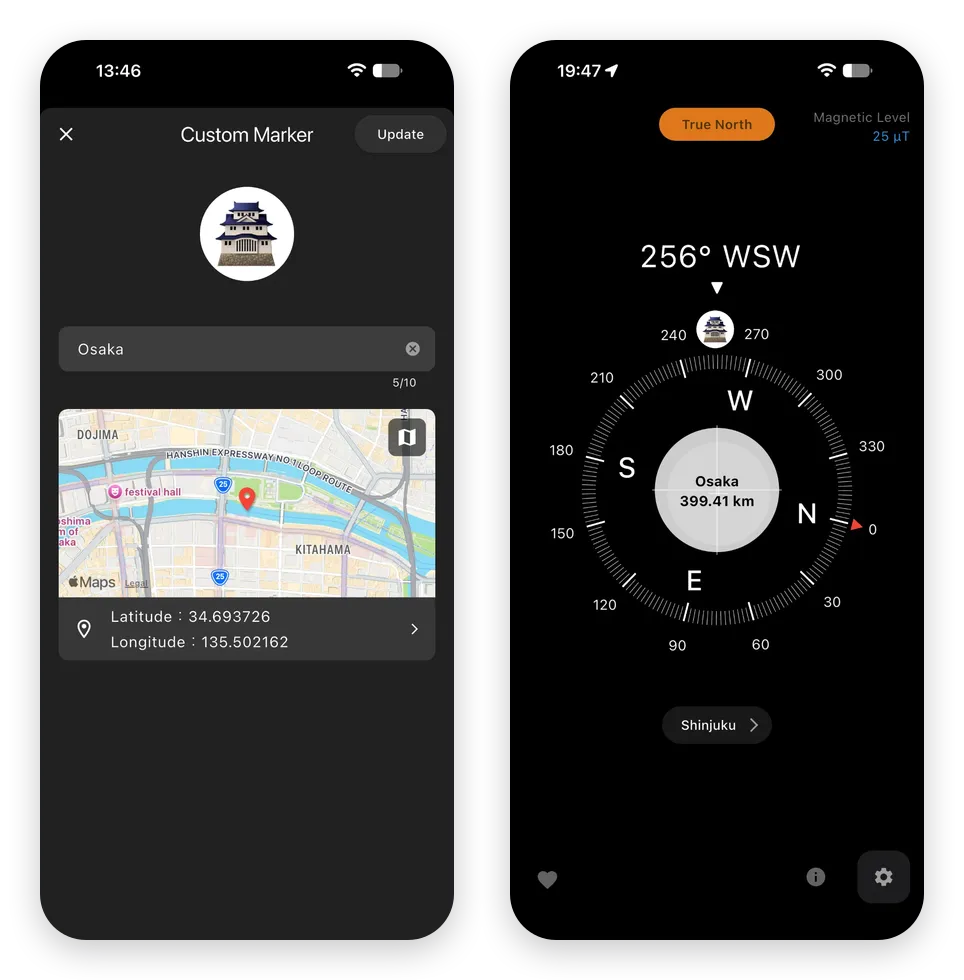
One custom marker is free, and you can reuse it. Swipe it left in the Marker List and tap “Update” to change its location, so it can point to home most of the time and to your hotel on a trip.
Other features
- Qibla marker: Built in alongside the moon. It shows the direction Muslims face to pray, toward Mecca, and the distance.
- True north and magnetic north: Switch between the north on a map (true north) and the north a magnetic compass points to (magnetic north) with a button at the top of the screen, which appears once you allow location access.
- Magnetic level: Shows the strength of the magnetic field around you.
- Level: Check whether your iPhone is flat.
- Map: See your current location on a map. You can also show your address, latitude, longitude, and altitude.
- Vibration: A light vibration every 30°, and a strong one when you pass north going clockwise. It doesn’t signal when you face a marker, so check the icon’s position for that. You can turn this off in Settings (“Enable memory vibration”).
Good to know before you start
- The app shows the moon’s current direction only. You can’t check during the day where it will be tonight. When the moon is below the horizon, the icon still points to where it is.
- The app doesn’t show altitude. Even when the moon is above the horizon, buildings can hide it if it’s low.
- Treat the icon’s color as a rough guide. Just after the moon rises or just before it sets, the icon may stay dark even though the moon is up, sometimes for an hour or so. This can happen in the early evening around a full moon, just when you might go out to look. If the icon is dark then, still check low in the sky in the direction it points.
- Don’t plan around the moonrise or moonset time in the center of the dial. It can be off by an hour or more, show a time that has already passed, or show N/A instead of a time. For accurate times, use a site like timeanddate.com. This doesn’t affect the moon’s direction.
- Accuracy depends on your iPhone’s magnetic sensor. Cases with magnets, steel structures, and appliances can throw it off. If you checked indoors, check again by a window or outside.
- Only one marker can be shown at a time, and markers need access to your location.
- Your location is used for the moon and marker directions, true north, and the map. It isn’t sent to me or to any server of mine. To show your city name and the map, the app uses Apple’s services, so your location does go to Apple for those. Custom marker locations are saved on your iPhone.
- Distance appears for Qibla and custom markers, but not for the moon. It’s the straight-line distance (as the crow flies), not the distance you’d travel.
Price and requirements
- The app is free to download, including the moon and Qibla markers and one custom marker.
- Ads appear on the map, Settings, Marker List, and Custom Marker screens. The compass screen has none. A full-screen ad may appear when you come back from another app or the Home Screen.
- Premium Mode (a one-time in-app purchase) removes ads and lets you create up to 10 custom markers. It also unlocks a setting that keeps the screen from going to sleep.
- For iPhone (iOS 15.6 or later).
Final thoughts
I like the moon, so I built this app because I wanted a quick way to see its phase and which way it is. I added custom markers so it could point to other places too.
Next time you hear there’s a full moon, check the dial before you go outside and you’ll know which part of the sky to look at. Turn on “Show” under “Markers,” and the moon’s current direction is right there on the compass.